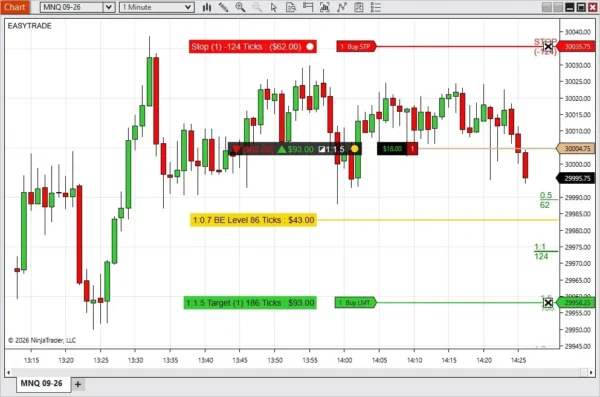
AdvancedTrader for NinjaTrader 8 (Download Latest Version of Advanced Trader Here) now updates stop, target, and risk/reward information while you move an order. This release also adds a chart-based break-even tool that can move working protective stops to the average entry price, with an optional tick offset.
The update removes the old save button and keyboard save controls. The main risk management actions now sit directly inside the chart information boxes.
Release date: 22 July 2026
Table of contents #
- What changed?
- Live order preview while dragging
- Saving the stop used for risk/reward levels
- How the break-even level works
- Multiple stops, targets, and overlapping boxes
- New and updated settings
- Before using the update live
- FAQ
What changed? #
- Stop and target boxes follow an order while you drag it.
- Ticks, points, currency, and risk/reward values update during the move.
- A circle inside the stop box saves the stop position used by the risk/reward levels.
- A BE circle inside the summary box lets you place a break-even trigger on the chart.
- Nearby information boxes move apart so their text remains visible.
- Orders of the same type at the same price are grouped into one box.
- Information boxes keep a more consistent gap from NinjaTrader order flags.
- The old chart save button and function-key save options have been removed.
Live order preview while dragging #
When you pick up a stop or target order with the mouse, its AdvancedTrader box now follows the order. The displayed numbers also change before you place it.
This lets you check the new tick distance, currency value, point value, or risk/reward ratio while choosing the price. You do not need to release the order and move it again just to check the result.
Saving the stop used for risk/reward levels #
AdvancedTrader saves the current stop position when a trade becomes active. A small circle inside the stop box shows whether the working stop still matches that saved position.
- A filled circle means the current stop matches the saved stop.
- An empty circle means the stop has moved away from the saved price.
- Click the circle to save the current stop as the new risk reference.
The saved stop gives the risk/reward ruler a fixed reference even when the working stop moves. It resets when the position closes.
How the break-even level works #
The new BE control is a colored circle inside the position summary box. Click it to create a BE Level line, then place that line at the price where AdvancedTrader should move the stops.
- Open a position with at least one working protective stop.
- Click the BE circle in the position summary box.
- Move the mouse to the required trigger price.
- Click the chart to place the BE Level line.
- Wait for price to reach the line.
When price reaches the level, AdvancedTrader moves all valid working protective stops to the average entry price, adjusted by the selected BE Offset (Ticks).
- For a long position, the offset is added above the average entry.
- For a short position, the offset is placed below the average entry.
Esc before placing the BE line if you want to cancel.
One trigger for each placed BE level
The BE action runs once. It does not move the stops again if price pulls back and crosses the same level a second time.
After the stops move, the BE line and its information box disappear. The circle remains in the summary box, so you can place another BE level when needed.
If you place the line at a level price has already crossed, AdvancedTrader waits for price to return to the safe side and cross it again. This avoids an immediate unwanted stop move.
Multiple stops, targets, and overlapping boxes #
The BE action moves all valid working protective stops for the active position. A stop-limit order keeps its existing price gap when it moves.
AdvancedTrader also combines orders of the same type at the same price. When boxes at nearby prices would cover each other, the display stacks them vertically. This applies to stop and target boxes, the BE box, and the position summary when it is displayed on the entry line.
Stop and target boxes no longer have extra connector lines. The BE box keeps its connector because it marks the exact trigger price. Its connector and main line use the same thickness.
New and updated settings #
BE Offset (Ticks)
Sets the number of ticks added to or subtracted from the average entry price when the BE action moves the stops.
BE Color
Controls the BE circle, information box, and line color. The BE text uses the existing information-box text color.
Distance From Order Flag
Sets the gap between the NinjaTrader order flag and the AdvancedTrader stop, target, and BE boxes. The default value is 10.
Summary Distance From Order Flag
Sets the gap for the position summary when Summary Display Position is set to Entry Line.
The BE box also follows the existing display choices for ticks, points, currency, risk/reward, font, text color, and background opacity.
Before using the update live #
Use a simple test position to confirm how the saved stop circle and BE trigger behave with your ATM setup. If you split a position across several protective stops, confirm that each stop moves to the expected price.
(Download Latest Version of Advanced Trader Here)
FAQ #
Does AdvancedTrader update while I drag an order?
Yes. The stop or target box follows the moving order, and its tick, point, currency, and risk/reward values update before you place it.
What does the circle inside the stop box mean?
A filled circle means the working stop matches the saved risk reference. An empty circle means the stop has moved. Click the circle to save its current position.
How does the AdvancedTrader break-even tool work?
Click the BE circle, place the BE Level line on the chart, and wait for price to reach it. AdvancedTrader then moves valid working protective stops to the average entry price with the selected tick offset.
Will the BE level trigger more than once?
No. Each placed BE level triggers once. Its line and information box disappear after the stops move.
Does the BE tool move more than one stop order?
Yes. It moves all valid working protective stops for the active position. Stop-limit orders keep their existing price gap.
Can I cancel while placing a BE level?
Yes. Press Esc before clicking the chart.