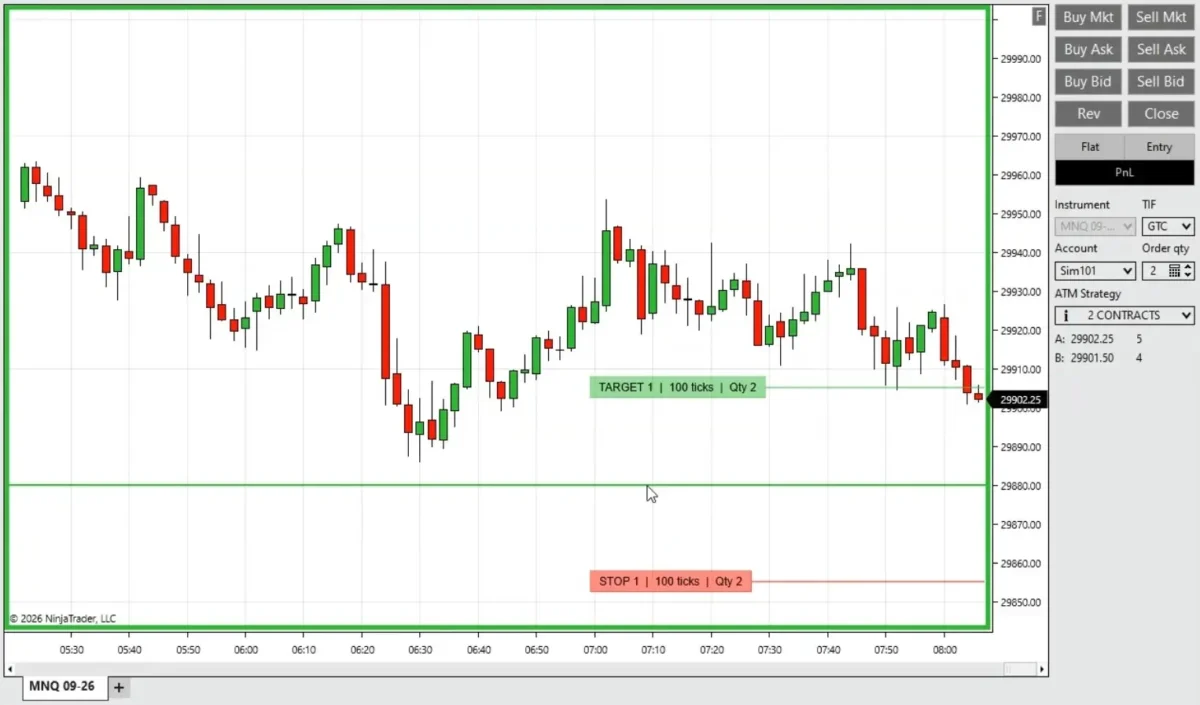
EasyTrade for NinjaTrader 8 (download with the Free Pack) can now display the selected Chart Trader ATM setup before an entry order is placed. Hold your long or short entry key, move the mouse to the price you are considering, and the chart shows where the ATM stop and targets would sit.
This makes the order easier to check before the click. You can see the stop distance, target distance and quantity attached to each level without working it out in your head or placing the order first.
Table of contents #
- How the ATM preview works
- A cleaner order-style preview
- New preview settings
- ATM calculation mode compatibility
- Why this helps before an entry
- FAQ
How the ATM preview works #
EasyTrade already uses a keyboard key and left mouse click for chart entries. The new preview builds on that same action.
- Select your account, quantity and ATM strategy in Chart Trader.
- Hold the EasyTrade long or short entry key.
- Move the mouse to the planned entry price.
- Check the temporary stop and target markers.
- Left-click when the setup is where you want it.
The indicator reads the selected ATM brackets and calculates their position from the proposed entry. Move the mouse and the preview follows. Release the key and it disappears.
A cleaner order-style preview #
Each stop or target has a colored information box on the left and a short line extending to the right. The complete marker uses roughly 40% of the chart width. Inside the box, EasyTrade shows:
- Whether the level is a stop or target.
- The bracket number when it belongs to one ATM bracket.
- The distance from the planned entry in ticks.
- The order quantity assigned to that level.
A marker may look like this:
STOP  |  40 ticks  |  Qty 5
TARGET 1  |  80 ticks  |  Qty 1
The shorter shape leaves the rest of the chart open, while the semi-transparent color makes it clear that these are planned levels rather than live working orders.
New preview settings #
The ATM preview is enabled by default, but it can be turned off from the EasyTrade indicator settings. The normal entry-price line is also enabled by default.
Show ATM Ghost Preview = True
Show Order Line Preview = True
ATM Preview Opacity (%) = 50
You can also set separate colors for the stop marker, target marker and text. The defaults are red stops, lime green targets and white text. The line and colored box use 50% opacity by default, while the text remains solid so it is easy to read.
ATM Preview Stop ColorATM Preview Target ColorATM Preview Text ColorATM Preview Opacity (%), adjustable from 0 to 100
ATM calculation mode compatibility #
The EasyTrade ATM ghost preview works with ATM templates that calculate stops and targets in Ticks or Pips.
Why this helps before an entry #
An ATM template name does not tell you whether the selected stop makes sense at the price under your mouse. A 40-tick stop may look reasonable on one chart and far too wide on another. The preview puts that distance on the chart before the order exists.
It also gives you a quick check that the correct ATM is selected. If the targets or total quantity look wrong, stop and fix the Chart Trader settings before clicking. That is a small pause, but it can prevent a simple setup mistake from becoming a live order problem.
The useful part is straightforward: you see the trade you are about to place, not just the entry line. Download Easy Trade within the 8 Free Indicators Pack
FAQ #
When does the EasyTrade ATM preview appear?
It appears while the configured long or short entry key is held and an ATM strategy is selected in Chart Trader.
Does the preview place or change any orders?
No. It is a temporary chart display and disappears when the entry key is released.
Which ATM calculation modes work with the preview?
The preview supports ATM templates that use ticks or pips. Price, currency and percent modes are not supported.
What happens when several brackets use the same stop?
EasyTrade draws one stop marker and adds the bracket quantities together. Matching targets are handled the same way.
Can the preview colors and transparency be changed?
Yes. Stop, target and text colors are configurable, and marker opacity can be set from 0% to 100%.
Can the ATM ghost preview be disabled?
Yes. Turn off Show ATM Ghost Preview in the EasyTrade indicator settings.