This release of MASSCopyADVANCED focuses on clearer visuals, smarter dropdown behaviour, and a cleaner workflow for live chart operation. Traders asked for more readable colours, more predictable popup lists, and a panel that stays out of the way during fast market conditions. This update delivers exactly that.
The interface is now easier to read, easier to customise, and more responsive across different chart sizes and monitor setups. Below is a complete breakdown of what changed and how to get the most out of the new version.
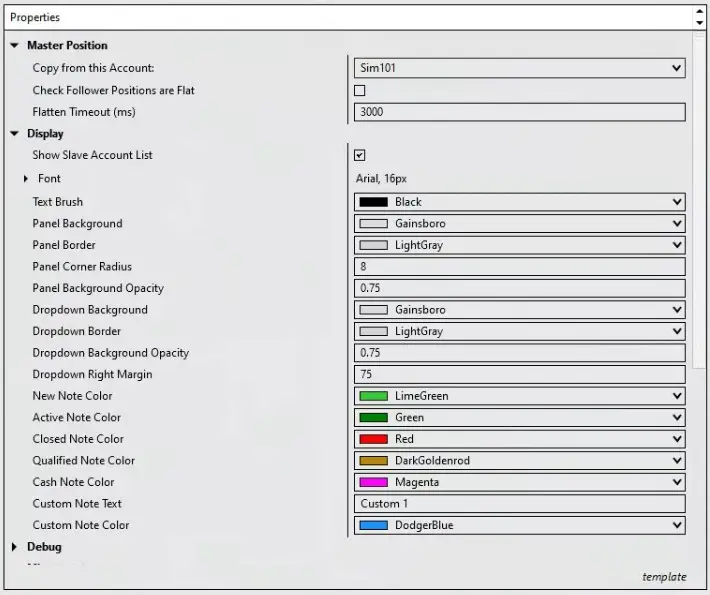
Table of Contents 🔗
- Streamlined Colour & Opacity Control
- New Right-Side Chart Margin
- Smarter Dropdown Behaviour
- Two-Column Multipliers Layout
- Improved Z-Order (Popups Always on Top)
- Simplified Notes System
- Refined Spacing & Shape Options
- Improved Responsiveness Across Monitors
- Cleaner Template Storage
- Practical Benefits for Daily Use
- Getting Started With the Update
- FAQ
Streamlined Colour & Opacity Control 🔗
The panel now uses a simplified, unified opacity system. Choose any standard NinjaTrader colour like Colors.Black or Colors.Magenta and pair it with a single opacity value. No more editing hex codes or hunting hidden alpha fields.
This same opacity applies to the dropdown popups, ensuring menus match the panel and stay readable regardless of your chart background.
New Right-Side Chart Margin 🔗
A default 200-pixel margin now keeps the interface away from the price ladder, preventing dropdowns from covering bid/ask activity or volume data. Adjust this value in the indicator settings if you prefer more or less space—the panel always realigns cleanly.
Smarter Dropdown Behaviour 🔗
Dropdowns now automatically detect available space on the screen and rearrange themselves to stay fully visible. No more popups stretching off-screen or hiding behind unrelated UI elements.
Two-Column Multipliers Layout 🔗
Multipliers now show in a 2-column × 15-row grid, making it much easier to scan, compare, and select values without scrolling. Everything stays inside the chart boundaries and avoids the price column, even when expanded.
Improved Z-Order (Popups Always on Top) 🔗
Previous versions had occasional overlaps where dropdowns sat beneath drawings or other indicators. Popups now render at a higher z-order, ensuring they always appear above the panel and remain clickable.
Simplified Notes System 🔗
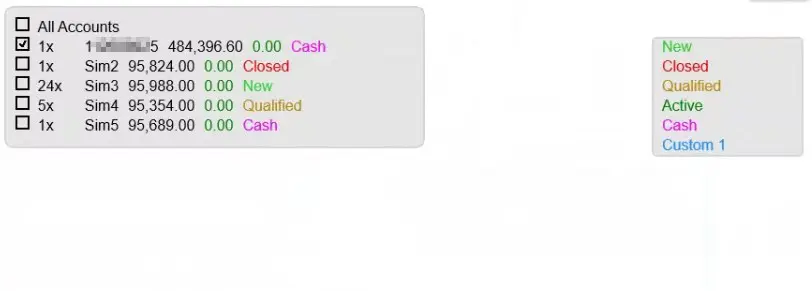
The Notes dropdown has been streamlined. All states—Closed, Qualified, Active, Cash, New, plus any custom labels—now live in a single dropdown.
To create a custom label such as “Review” or “High Priority,” simply type it into the indicator settings. It appears instantly without extra menus or formatting requirements.
Refined Spacing & Shape Options 🔗
Dropdowns open with a clean 5px margin for better separation and readability. The panel now supports adjustable corner radius, letting you choose between sharp or rounded edges to match your preferred chart style.
Improved Responsiveness Across Monitors 🔗
Whether you’re using ultrawide monitors, a laptop, or switching screens mid-session, the interface automatically clamps popups to the visible area. The panel stays in position, and dropdowns reorganise themselves intelligently.
Cleaner Template Storage 🔗
By removing serialized colour data and relying on clean brush names with numeric values, template files are now far cleaner. This makes importing, exporting, or sharing workspaces more reliable across machines.
Practical Benefits for Daily Use 🔗
- Faster tagging of accounts and notes.
- Cleaner visibility around price action.
- More predictable popup behaviour.
- Reduced chart clutter during fast markets.
- Templates transfer more reliably between workstations.
Getting Started With the Update 🔗
Try adjusting opacity first to find your visibility sweet spot. Add a custom note label to match your trading workflow. Then experiment with corner radius and spacing—every change updates live.
Thank you for using MASSCopyADVANCED and for the feedback that continues to improve the tool. This update aims to reduce friction, improve chart clarity, and support faster decision-making.
FAQ 🔗
Do I need to reinstall templates after this update?
No—your existing templates work normally. Only the panel and popup behaviour have changed.
Will opacity settings affect chart performance?
No. The opacity engine is lightweight and uses NinjaTrader’s native rendering system.
Can I disable the new right-side spacing?
Yes—simply adjust the spacing value in the indicator settings. Set it to 0 for no offset.
Do custom Notes sync across templates?
Yes. Any custom note label added in settings appears in the same unified Notes dropdown.
Is this update compatible with prop-firm accounts?
Yes. The new layout is specifically optimised to avoid blocking price ladders or evaluations.