Installing an automated trading strategy is the first step to running algorithmic systems on NinjaTrader 8. This guide shows you exactly how to import a strategy .zip, confirm the install, and get ready to load optimized templates for your markets. We also cover optimization basics, reliable testing workflow, troubleshooting, and a short FAQ.
Table of Contents 🔗
- Quick Install: Import a Strategy
.zip - Example: Installing the Reversal Strategy
- Optimizing Your Strategy Settings
- Finding Reliable Automated Strategies & Templates
- Combining Automated & Manual Trading
- Pre‑Trade Checklist
- Troubleshooting
- FAQ
Quick Install: Import a Strategy .zip 🔗
Use the built‑in NinjaScript importer and always import the original .zip (do not unzip).
- Open Control Center → Tools → Import → NinjaScript Add‑On…
- Select the strategy
.zipinstallation file and click Open. - Wait for the import to complete (status will confirm success).
- After installation, the strategy is available under Strategies; you can now import/load strategy parameter templates optimized per market.
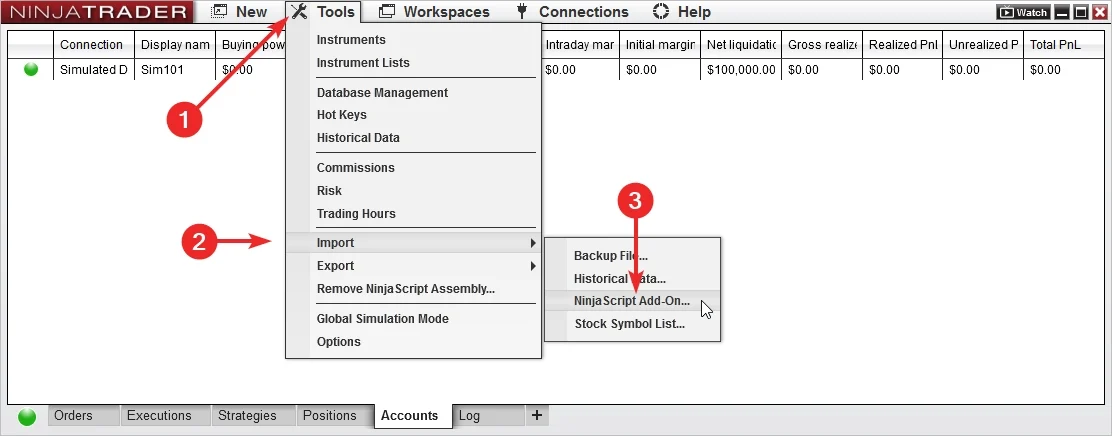
.zip. Imports only accept original package archives.Example: Installing the Reversal Strategy 🔗
Below is a concrete example using our Reversal automated strategy for NinjaTrader 8.
- Download the Reversal strategy
.zipfrom the product page. - Control Center → Tools → Import → NinjaScript Add‑On…
- Select the Reversal
.zipand press Open. - Wait for the installer to finish (you’ll see a success message).
- Open a chart or the Strategies tab, pick Reversal, and Load templates to apply market‑specific parameters.
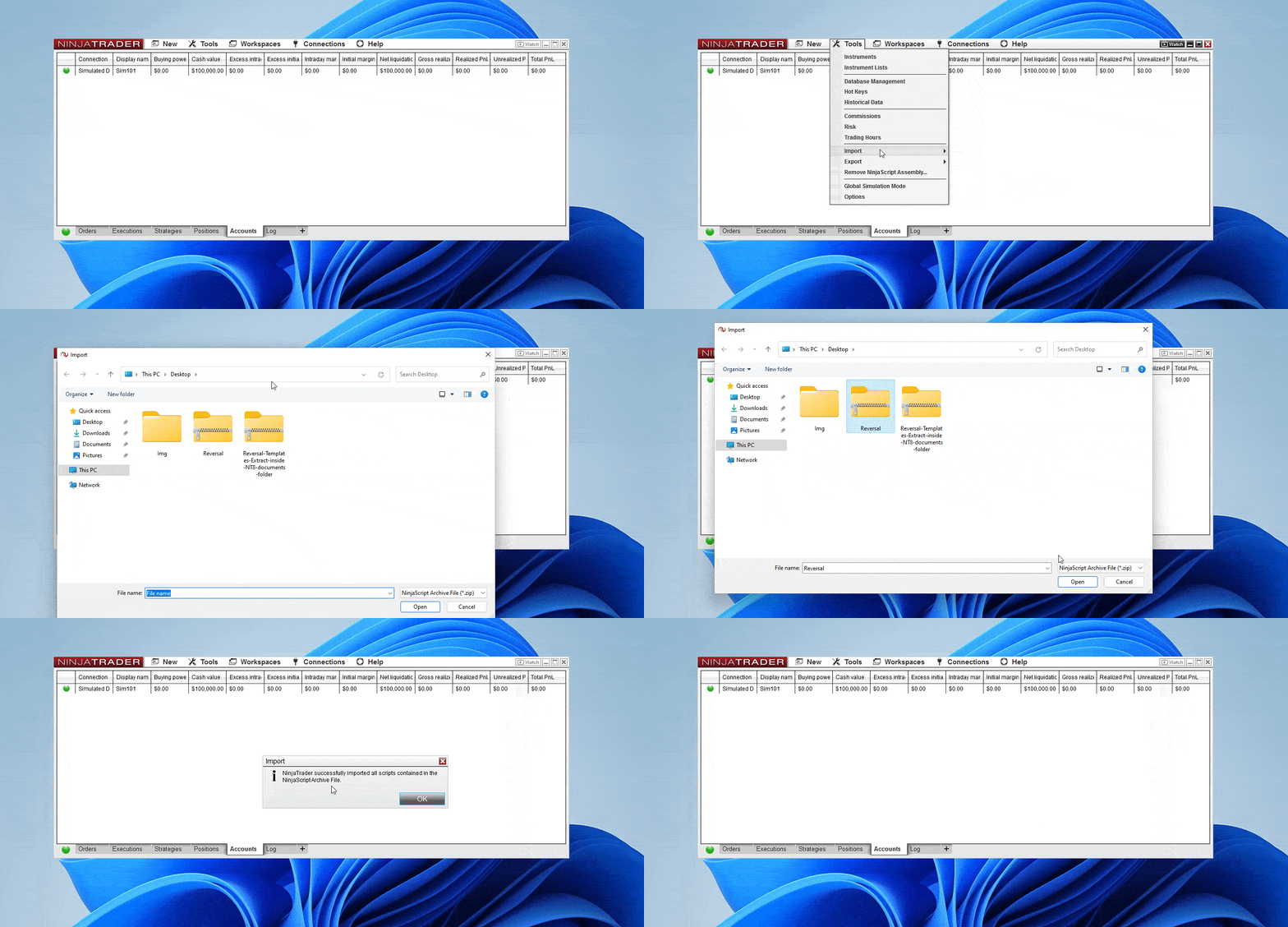
Optimizing Your Strategy Settings 🔗
Once installed, tune your strategy for the market you trade. Start with defaults from the template, then iterate thoughtfully.
- Backtest in Strategy Analyzer: confirm baseline performance with the shipped parameters.
- Parameters to review: stop loss, profit target, filters, time‑of‑day, session template.
- Optimization: run bounded searches (avoid extreme ranges), then validate out‑of‑sample or with walk‑forward to reduce curve‑fit risk.
- Realism: set Commissions and slippage so Sim ≈ Live.
Finding Reliable Automated Strategies & Templates 🔗
Reliable results come from a solid workflow and diversified testing. We publish templates inside each strategy to reflect current market conditions—use them as your starting point.
- Batch testing: create a separate Sim account per template/timeframe and run them simultaneously for 2–3 days. Promote consistent winners.
- Stay current: periodically re‑import updated templates aligned with the latest market regime.
- See our J Strategy workflow for a concrete testing plan: “J” Automated Trading Strategy – Full Guide.
Combining Automated & Manual Trading 🔗
Automation doesn’t have to replace discretion. Many traders combine strategy execution with manual overlays for news, volatility, or risk limits.
- Use automation for rule‑based entries/exits; manage size and session times manually if needed.
- Keep a playbook for when to pause/restart strategies (e.g., high‑impact releases).
- Let ATMs (or strategy logic) attach stops/targets consistently.
Pre‑Trade Checklist 🔗
- Imported the original .zip without unzipping.
- Template loaded for your instrument/timeframe.
- Data Series and Trading Hours match the template.
- Commissions/slippage set to realistic values.
- Account set to Simulation for initial testing.
Troubleshooting 🔗
- Import failed? Re‑download the
.zip; ensure you’re using Tools → Import → NinjaScript Add‑On and not unzipping the file. - Strategy not visible? Restart NinjaTrader 8; check Control Center → Log for dependency/license messages.
- No trades after enabling? Strategies wait for specific setups. Verify the Data Series, session template, and that real‑time data is connected.
- Performance mismatch vs Analyzer? Align Commissions, slippage, data sources, and Trading Hours between Analyzer and chart.
FAQ 🔗
Do I need to unzip the strategy file?
No. Import the original .zip via Tools → Import → NinjaScript Add‑On.
Where do strategies appear after install?
In the Strategies list (on the chart or in the Control Center’s Strategies tab), depending on where you enable them.
Can I uninstall a strategy?
Yes. Use Tools → Remove NinjaScript Assembly and restart NT8.
How do I set commissions?
Control Center → Accounts Tab → Right Click → Edit Account → Commission (select commission template).
Should I go live right away?
No—start in Sim, run for several sessions, then size up gradually once results are consistent.