J Strategy is an automated trading system for NinjaTrader 8 that runs once per day per template, blending price‑action logic with a diversified, multi‑market approach. It’s designed to be simple to deploy (biweekly template updates) and robust to operate from the Control Center, with minimal chart overhead.
Table of Contents 🔗
- 1. Introduction
- 2. Installation
- 3. Strategy Setup (Control Center)
- 4. Testing & Performance Analysis
- 5. Day‑to‑Day Operations & Maintenance
- 6. Problem Solving
- 7. Good Practice & Risk Controls
- 8. General Questions (FAQ)
- 9. Resources
1. Introduction 🔗
Welcome to the definitive guide to implementing the J Strategy in NinjaTrader 8. The system executes once per day per template and is kept current with biweekly template updates. Follow this guide to install, configure, test, and troubleshoot your setup.
2. Installation 🔗
- Download J Strategy from our website and keep the
.ziphandy. - Open Control Center → Tools → Import → NinjaScript Add‑On… and select the J Strategy
.zip. - Confirm all prompts. If you’re asked to replace existing files/templates, click Confirm.
- Restart NinjaTrader to ensure the latest code loads.
3. Strategy Setup (Control Center) 🔗
Important: Set up J Strategy from the Control Center → Strategies tab. J Strategy uses a special Trading Hours template and is intended to run without loading multiple heavy charts.
3.1 How many SIM accounts do I need? 🔗
Open the downloaded strategy .zip and review the included template sets. Create one SIM account per template set you plan to test.
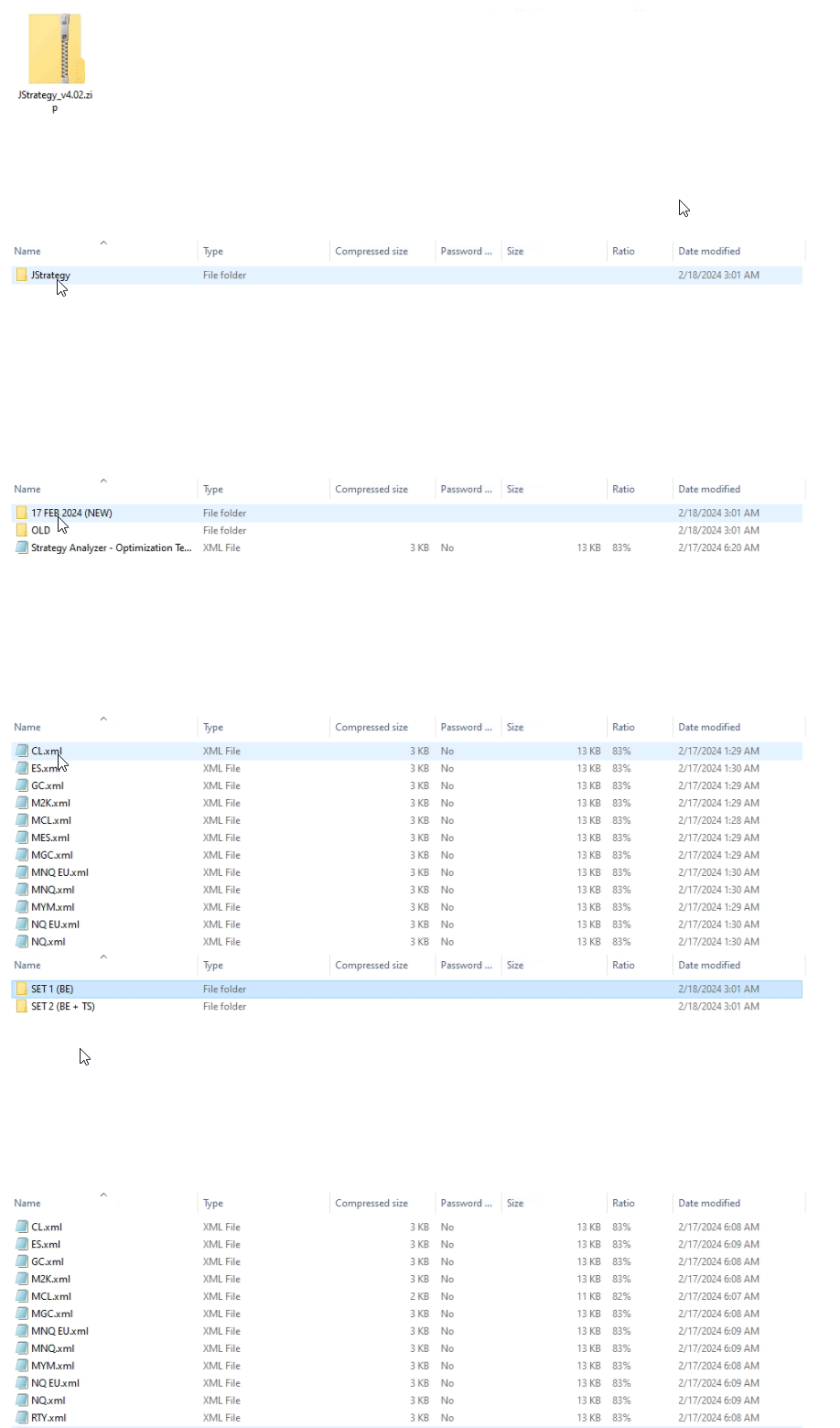
Example: two template sets to test
17 FEB 2024 > SET 1 (BE)17 FEB 2024 > SET 2 (BE + TS)
3.2 Create SIM accounts 🔗
- Open Control Center.
- Disable any active connection.
- Go to the Accounts tab.
- Right‑click → New SIMulation account…
- Name each account after its template set (e.g., Sim 17 FEB 2024 SET 1, Sim 17 FEB 2024 SET 2).
- Configure and click OK.
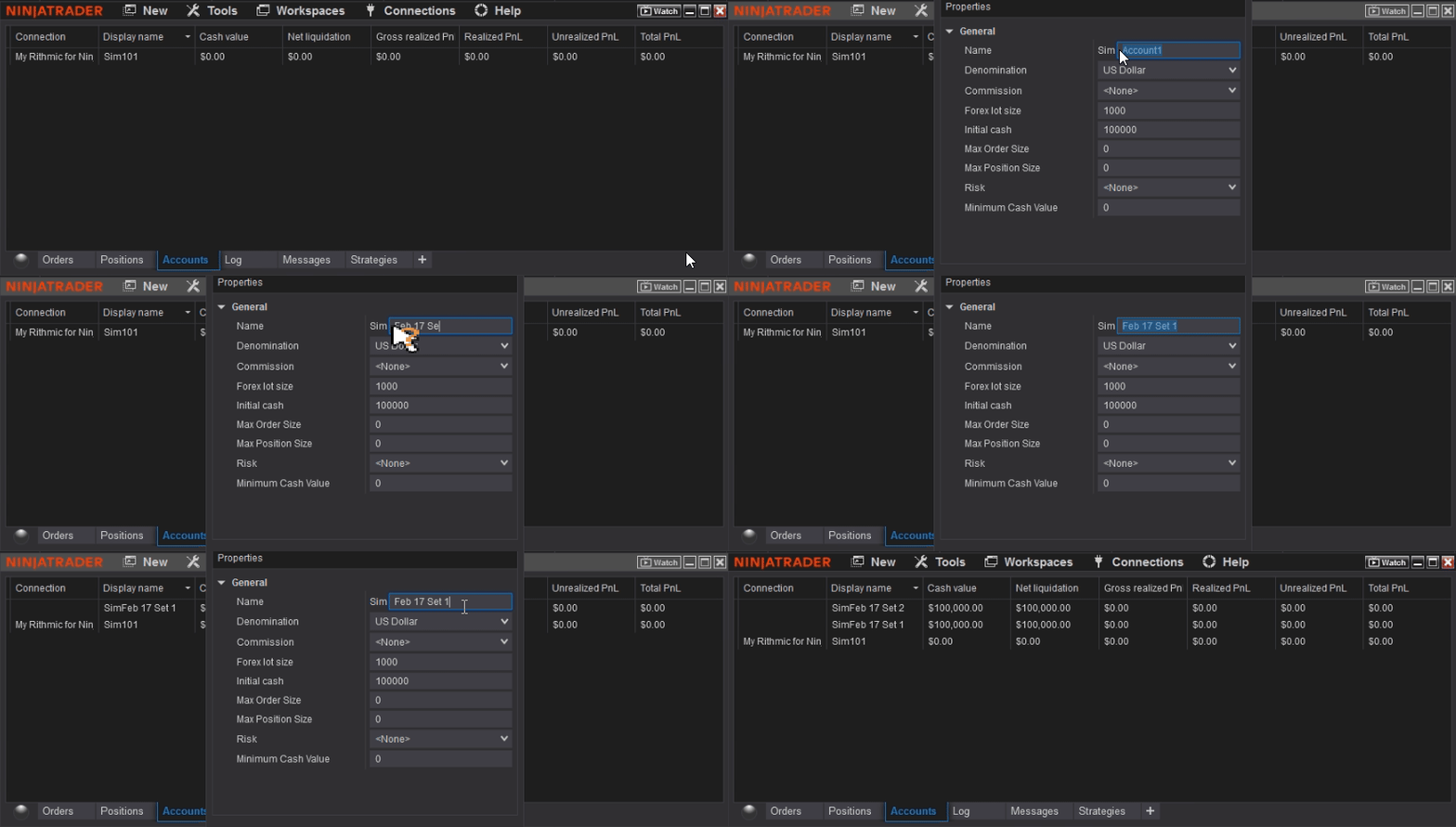
You should end with one SIM account per template set.
3.3 Connect templates to the testing SIM accounts 🔗
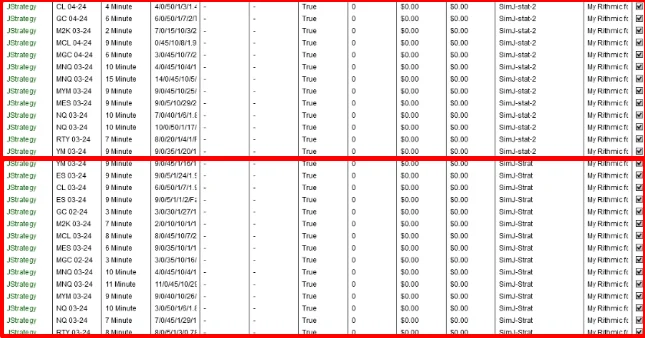
Create a new strategy entry in the Strategies tab for each template inside the template set and bind it to the corresponding SIM account.
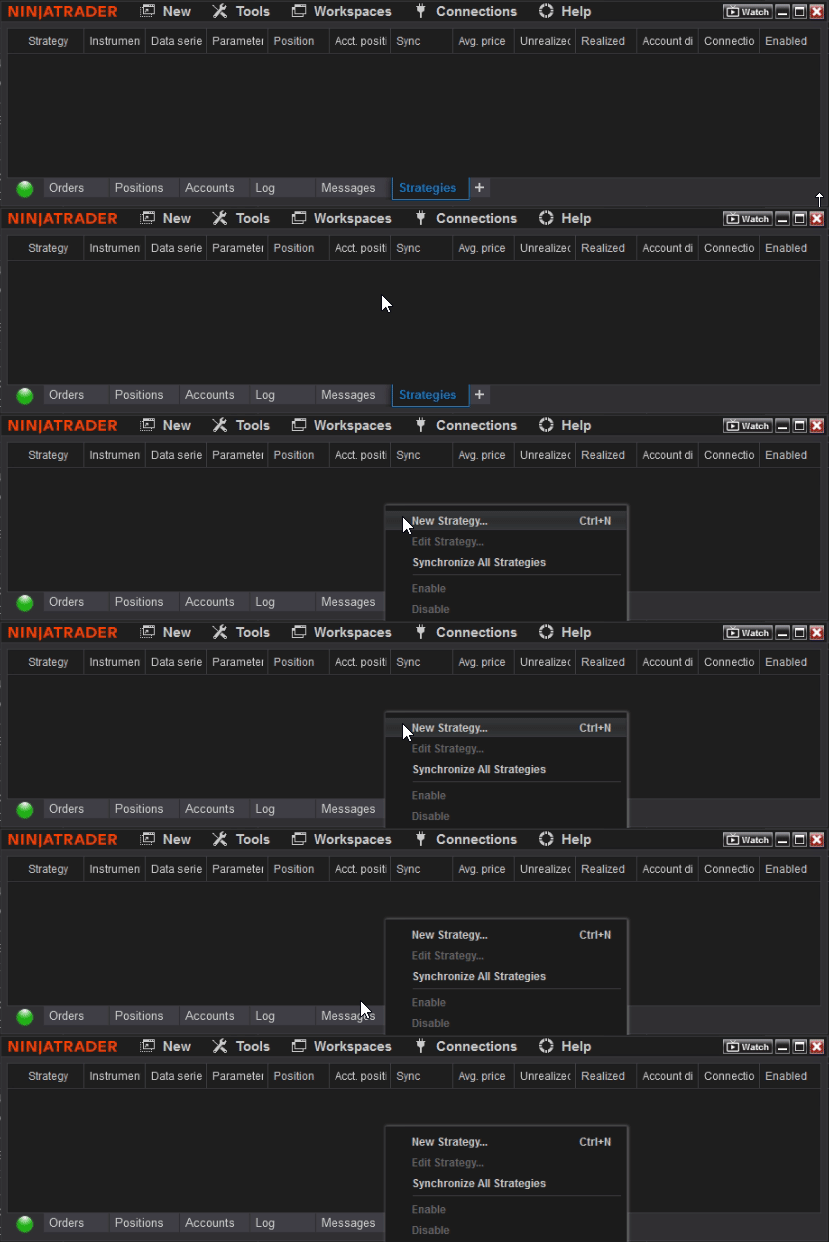
Repeat this for every template in 17 FEB 2024 > SET 1 (BE), then do the same for the second SIM account and template set.
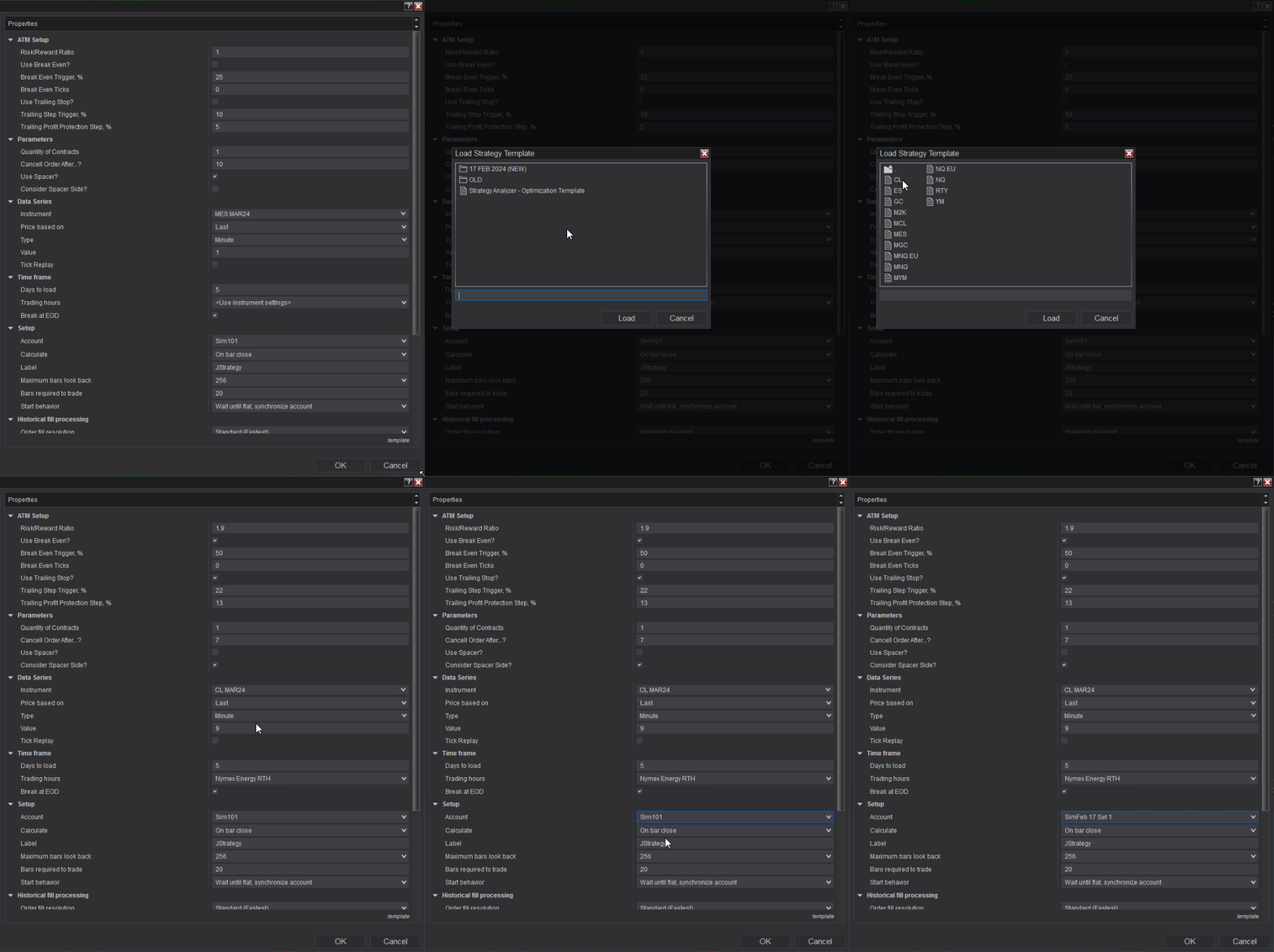


4. Testing & Performance Analysis 🔗
Use the two‑account setup as your testing field. Keep only one template per market per account. After 2–3 days of SIM testing, open Trade Performance and identify the best performers. Move those templates (or the whole set) to your main account by either re‑creating them or changing the Account binding in the Strategies tab.
5. Day‑to‑Day Operations & Maintenance 🔗
- Template updates: we publish biweekly updates. Re‑import and bind them to your SIM accounts first; promote winners to your main account after the usual test window.
- One trade/day behavior: J Strategy executes once per day per template by design. Seeing no additional entries is expected once the daily logic has fired.
- Session alignment: use the Trading Hours template shipped with each set. Mixing RTH/ETH can mute signals.
- Commissions/slippage: set realistic values in Tools → Options → Commissions so Sim ≈ Live.
- Workspace hygiene: save your workspace after enabling/disabling or rolling contracts to avoid losing bindings.
6. Problem Solving 🔗
6.1 Machine ID & license problem? 🔗
Open Control Center → Log and check for license/Machine ID errors. If you see any issues, email us your Machine ID for activation help.
6.2 Strategy ON but no trades / can’t enable any strategy? 🔗
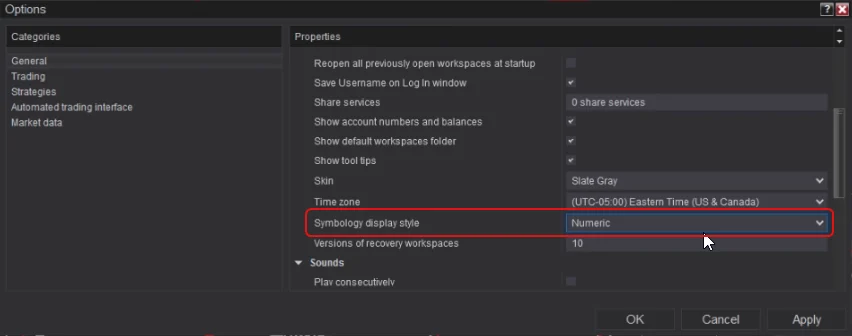
Likely a symbology display mismatch. Disable strategies, then:
- Control Center → Tools → Options
- Set Symbology display style = Numeric
- Apply and restart NinjaTrader
- Re‑enable strategies in the Strategies tab
6.3 Strategy ON but still no trades? (check contract) 🔗
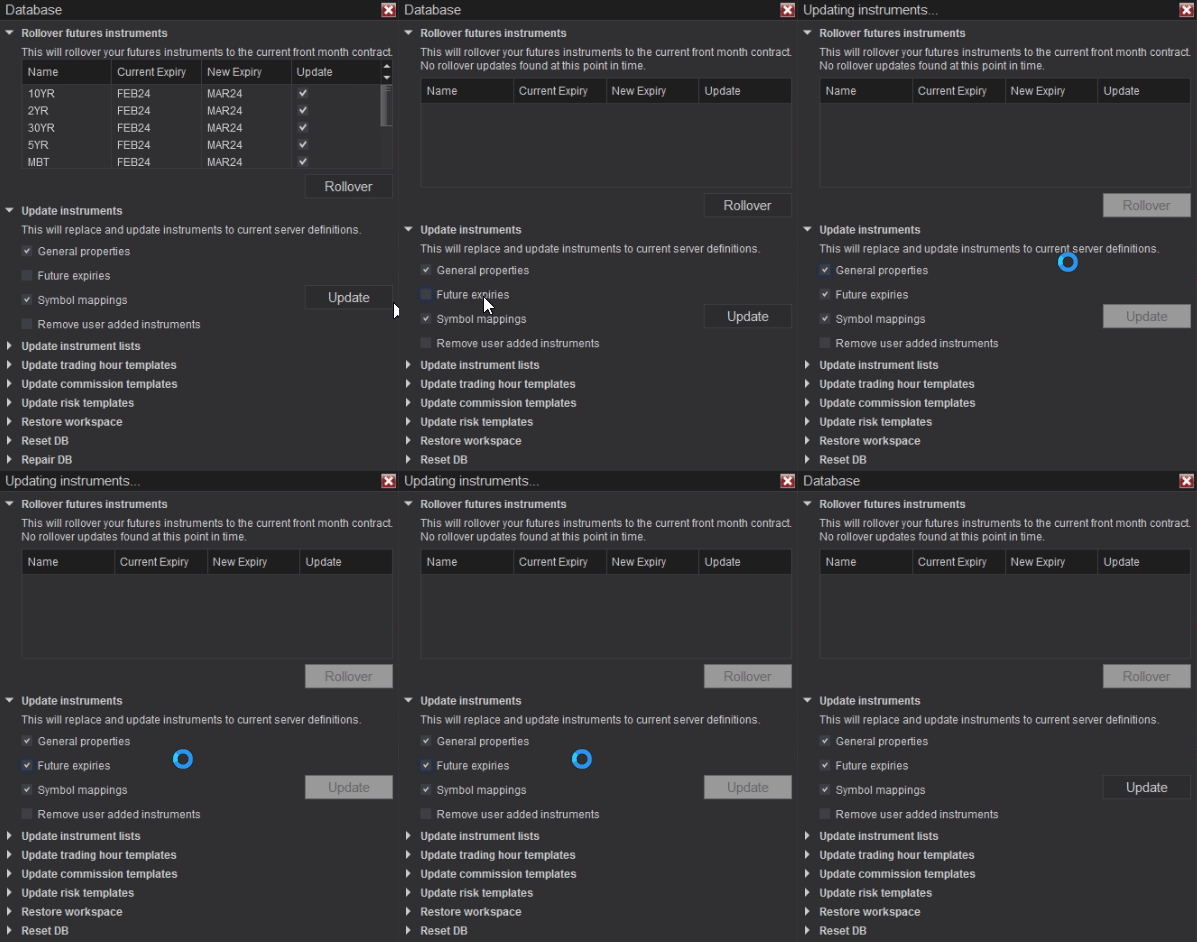
Ensure the instrument uses the latest futures expiration (not an expired contract).
- Disable all strategies
- Tools → Database Management
- Click Rollover futures instruments
- Check Future Expires and click Update
- Re‑enable strategies
- Save workspace
6.4 Can’t enable any strategy? 🔗
Most cases are either a license/Machine ID issue (6.1) or a symbology display problem (6.2). Apply both fixes.
6.5 Remote support request 🔗
We can assist remotely. Install AnyDesk and send your connection ID with a brief issue description to team@mascapital.uk. Please be at your PC to grant access when we connect.
7. Good Practice & Risk Controls 🔗
- One template per market per account: avoids double‑risking the same instrument.
- Daily loss stop: define a fixed max daily loss per template/account and disable on breach.
- Correlation control: diversify across symbols/timeframes; don’t stack highly correlated templates.
- News discipline: consider pausing around high‑impact releases if your template isn’t news‑aware.
- Documentation: keep a small log of which templates you promoted and why; it helps rotation decisions.
8. General Questions (FAQ) 🔗
What are the results of backtesting?
We generally avoid historical backtests due to fill inaccuracies and bias. Instead, we recommend SIM tests on live market data. If you need recent performance, email us and we’ll share live results for the requested timeframe.
Can I use Playback?
Yes. You can test with Playback as long as you follow the same setup rules used for live‑data SIM testing. Do not move J Strategy to charts; manage it from the Strategies tab to preserve accuracy.
Why shouldn’t I test directly on a chart?
- Data limitations: Charts may not load all the history the logic needs.
- Wrong sessions: Each template ships with a tailored Trading Hours session.
- Data manipulation risk: Interacting with charts can skew test context.
- Interference: Chart indicators/overlays can conflict with strategy logic.
- Scale: The Strategies tab lets you run hundreds of templates without heavy chart loads.
9. Resources 🔗
- Virtual Servers for Manual & Automated Trading
- Machine ID guidance: NinjaTrader 8 Machine ID — find & manage
- Installing strategies: How to Install an Automated Strategy in NT8
- Template testing workflow: Test & Use Templates for Automated Trading
- Email support: team@mascapital.uk