
M Trader is an automated strategy for NinjaTrader 8 with ready-to-use templates and biweekly template updates. Test it on simulation accounts before trading live.
What it does
M Trader lets you run and compare template sets with minimal configuration. Each set uses a separate SIM account, so you can review its results before choosing templates for another account.
Setup
M Trader with all the templates can be imported from the NinjaTrader Control Center using the following steps:
- Download M Trader from our website and save the file.
- Open
Tools > Import > NinjaScript Add-On...in Control Center. Select the file and click Import. - Click Confirm for each prompt to replace existing templates or files.
- Restart NinjaTrader after installation and every update so the latest code is active.
Configure M Trader from the Control Center, not a chart. It requires a special trading hours template.
Figuring Out How Many SIM Accounts I Need
Open the downloaded strategy's .zip folder and count its template sets. You need one SIM account for each set you plan to test.
In our example we have 8 template sets to test:
- Template set #1:
2 MIN Templates - Template set #2:
5 MIN Templates - Template set #3:
10 MIN Templates - Template set #4:
15 MIN Templates - Template set #5:
500 Ticks Templates - Template set #6:
1000 Ticks Templates - Template set #7:
2000 Ticks Templates - Template set #8:
3000 Ticks Templates
SIM Account Creation
Name each account after its template set so you can identify it in performance reports.
- Open the NinjaTrader
Control Center. - Disable your current connection (if one is active).
- Select the
Accountstab. - Right-click inside the Accounts tab and select
New SIMulation account.... - Name the new account according to the template set (e.g.,
Sim M Trader 2 MIN,Sim M Trader 5 MIN, etc.). - Configure the account and click OK.
At the end, you should have a separate simulation account for each template set you plan to test.
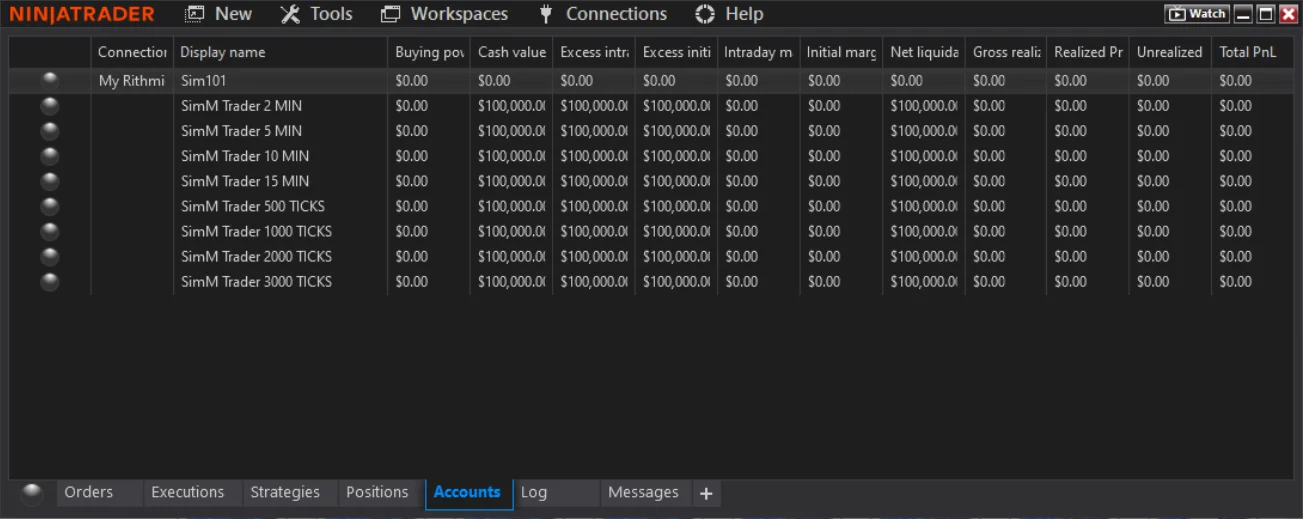
Template Connection to Testing SIM Accounts
Next, create a new strategy in the Strategy tab. Repeat this process for each template located in the template set.
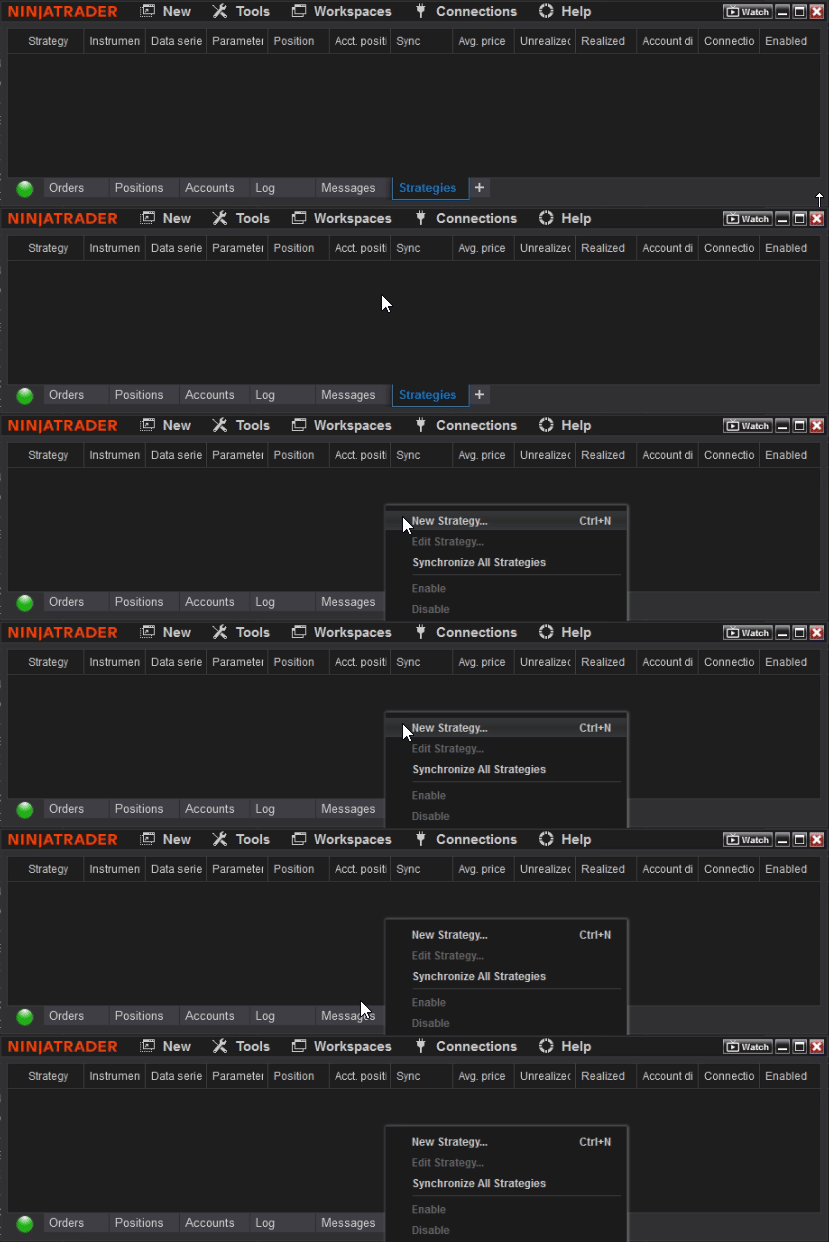
Create a strategy for each template and connect it to the account for that set. Repeat for every set.
The example ends with 8 accounts, each with ~3 templates loaded and connected.

Updates may change the number of templates and sets. Keep the same rule: 1 account = 1 template set.
How it works
Use the setup above as your testing field. Observe its performance and confirm positive results before moving to a live account. Remember to maintain only ONE template per market per account.
After approximately 2 days of SIM account testing, identify which templates performed best using the Trade Performance feature in NinjaTrader. Transfer those templates to the account you want to use.
You may transfer either the best-performing templates or an entire set. Do this by repeating the setup procedure described earlier, or by simply adjusting the connected account inside the Strategy tab.
Troubleshooting
Machine ID & Licence Problem
Check the Log Tab in Control Center for licence or Machine ID errors. If one appears, send your Machine ID to team@mascapital.uk. Otherwise, check symbology and contract expiry below.
Strategy is ON but Not Taking Any Trades / Unable to Enable Strategy
This is often a market symbol problem. To fix it:
- Open NinjaTrader
Control Center. - Go to
Tools > Options. - Find
Symbology display styleand set it to Numeric style. - Apply the changes and restart NinjaTrader.
- After restarting, open the
Strategiestab and enable the strategies again.
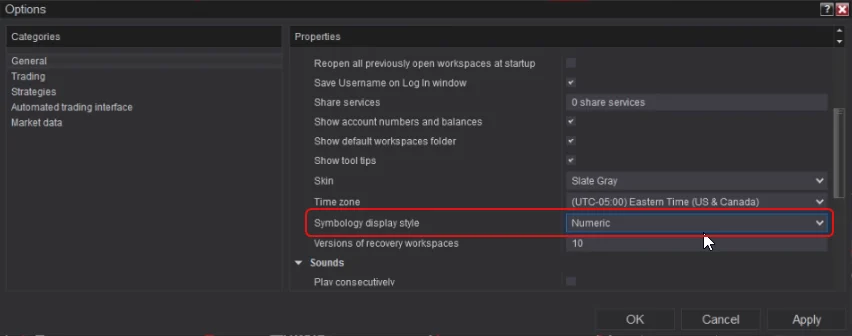
Strategy is ON but Not Taking Trades (Expired Contract)
Use the latest futures contract. The guide's example, CL 04-24 (CL APR24), illustrates the format, not the current contract. To roll an expired contract:
- Disable all strategies.
- Go to
Tools > Database Management. - Press Rollover future instruments.
- Check Future Expires and press Update.
- Enable strategies again.
- Save your workspace to keep the changes.
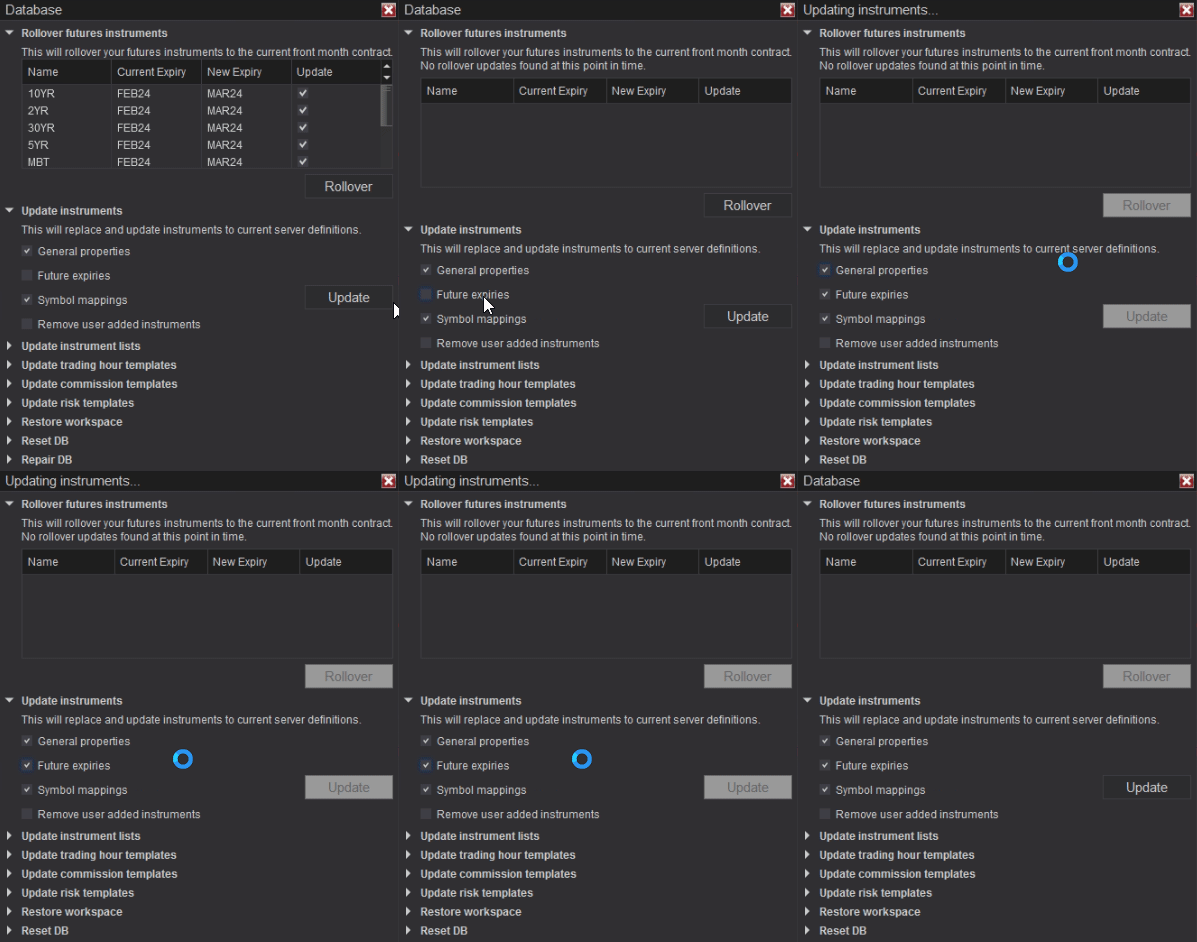
Unable to Enable Any Strategy
Review the licence and symbology checks above, numbered 5.1 and 5.2 in the original guide. If neither resolves it, email team@mascapital.uk.
Remote Support Request
We can provide remote support to help with installation and setup issues. Please download AnyDesk, then send your connection ID to: team@mascapital.uk.
Include details about your issue in the email, and be available at your computer so our technician can connect and assist you.
FAQ
What are the results of the backtesting?
We do not use historical backtesting to evaluate our strategies because order fills can be inaccurate. Test on simulated accounts with live market data instead. Email us for recent M Trader live market results for the timeframe you want to review.
The recommended test uses the same Control Center setup as live operation. Evaluate the templates on their separate simulated accounts with live data rather than relying on historical chart fills. This is the testing approach used in the guide before selecting templates to transfer.
Can I use playback?
Yes, you can test the strategy using playback. However, make sure to follow the same setup rules as live testing. Incorrect setup (e.g., adding the strategy directly on a chart) may give inaccurate results.
Why is it not advisable to test a strategy directly on an open chart?
- Data Limitations: Charts may not provide all the historical data required for complete testing.
- Wrong Session Time Setup: Each bundled template uses its own trading session template, optimized for its market.
- Data Manipulation: Interacting with charts during testing can distort results.
- Platform Interference: Other indicators or chart settings may interfere with strategy performance.
- Multiple templates: Use the Strategy tab to load several templates on the same account rather than opening separate charts.
Each bundled template has a trading session template optimised for its market. A chart setup can use the wrong session, lack the necessary historical data or introduce interference from indicators and chart settings. Loading templates through Control Center keeps the workflow consistent with the setup used for testing.
Resources & support
A VPS can keep the setup running continuously. See Virtual Servers for Manual and Automated Trading. For setup, licensing or performance updates, contact team@mascapital.uk.