1. M Trader Introduction 🔗
Welcome to the ultimate guide for implementing and maximizing the M Trader automated strategy within NinjaTrader 8.
The M Trader strategy is designed for traders seeking an efficient, automated approach to trading. With a focus on simplicity and effectiveness, it offers an easy setup process with minimal configuration. Thanks to biweekly template updates, you can follow our guide and quickly start testing the strategy with confidence.
By following the steps in this guide, you’ll gain a solid understanding of how to run and evaluate the M Trader strategy effectively, setting the stage for your trading success. This guide provides a complete walkthrough for setting up and using the M Trader automated strategy in NinjaTrader.
Table of Contents 🔗
- 1. M Trader Introduction
- 2. M Trader Installation
- 3. Strategy Setup
- 4. Strategy Testing & Performance Analysis
- 5. Problem Solving
- 6. General Questions (FAQ)
2. M Trader Installation 🔗
M Trader with all the templates can be imported from the NinjaTrader Control Center using the following steps:
- Download M Trader: Begin by downloading the M Trader from our website. Save the file in a location that is easily accessible.
- Import the strategy: Open the NinjaTrader Control Center and navigate to
Tools > Import > NinjaScript Add-On.... This opens the Import dialog window. Select the downloaded M Trader file and click Import. - Confirm import messages: During the process, you may encounter multiple confirmation messages. Click Confirm for each one to replace any existing templates or files with the new ones.
- Restart NinjaTrader: After successfully importing M Trader, restart NinjaTrader to ensure you are running the latest version.
3. Strategy Setup 🔗
To successfully set up the M Trader, it is important to perform the necessary steps from the Control Center, as it requires the use of a special trading hours template. Follow the guide below to ensure smooth implementation.
3.1 Figuring Out How Many SIM Accounts I Need 🔗
To start, open the .zip folder of the strategy you downloaded. Check how many template sets you have by opening it.
In our example we have 8 template sets to test:
- Template set #1:
2 MIN Templates - Template set #2:
5 MIN Templates - Template set #3:
10 MIN Templates - Template set #4:
15 MIN Templates - Template set #5:
500 Ticks Templates - Template set #6:
1000 Ticks Templates - Template set #7:
2000 Ticks Templates - Template set #8:
3000 Ticks Templates
3.2 SIM Account Creation 🔗
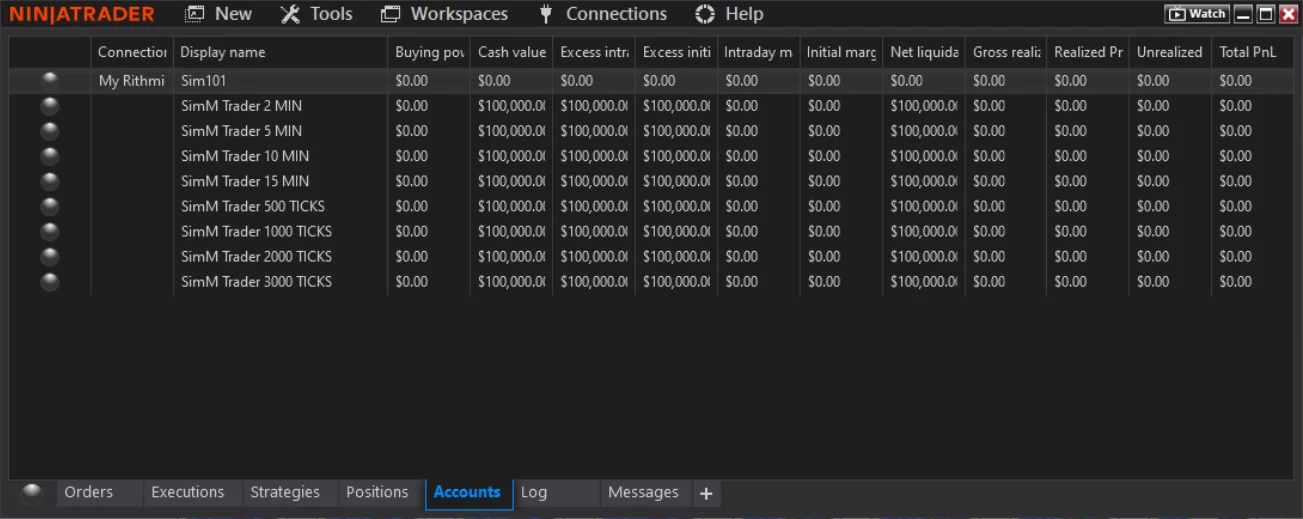
It is crucial to create SIM accounts with specific names for each template set. This keeps accounts organized and makes performance tracking easier during strategy testing.
- Open the NinjaTrader
Control Center. - Disable your current connection (if one is active).
- Select the
Accountstab. - Right-click inside the Accounts tab and select
New SIMulation account.... - Name the new account according to the template set (e.g.,
Sim M Trader 2 MIN,Sim M Trader 5 MIN, etc.). - Configure the account and click OK.
At the end, you should have a separate simulation account for each template set you plan to test.
3.3 Template Connection to Testing SIM Accounts 🔗
Next, create a new strategy in the Strategy tab. Repeat this process for each template located in the template set.
In our example, a new strategy is created for each template inside the template set and connected to the corresponding account. This process should be repeated for every template set.

4. Strategy Testing & Performance Analysis 🔗
Use the setup above as your testing field. Observe its performance and confirm positive results before moving to a live account. Remember to maintain only ONE template per market per account.
After approximately 2 days of SIM account testing, identify which templates performed best using the Trade Performance feature in NinjaTrader. Transfer those templates to the account you want to use.
You may transfer either the best-performing templates or an entire set. Do this by repeating the setup procedure described earlier, or by simply adjusting the connected account inside the Strategy tab.
5. Problem Solving 🔗
5.1 Machine ID & License Problem 🔗
If the strategy is not working, first verify if your license is active. Go to the Log Tab in NinjaTrader Control Center and check for errors related to your license. If there are no errors or messages linked to your Machine ID, proceed to the next possible cause.
5.2 Strategy is ON but Not Taking Any Trades / Unable to Enable Strategy 🔗
This is often a market symbol problem. To fix it:
- Open NinjaTrader
Control Center. - Go to
Tools > Options. - Find
Symbology display styleand set it to Numeric style.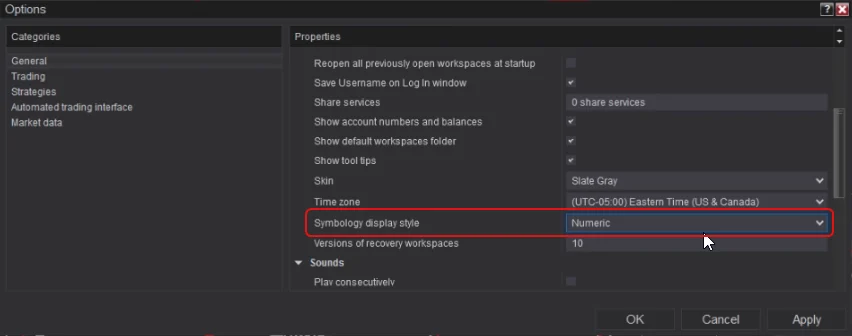
- Apply the changes and restart NinjaTrader.
- After restarting, open the
Strategiestab and enable the strategies again.
5.3 Strategy is ON but Not Taking Trades (Expired Contract) 🔗
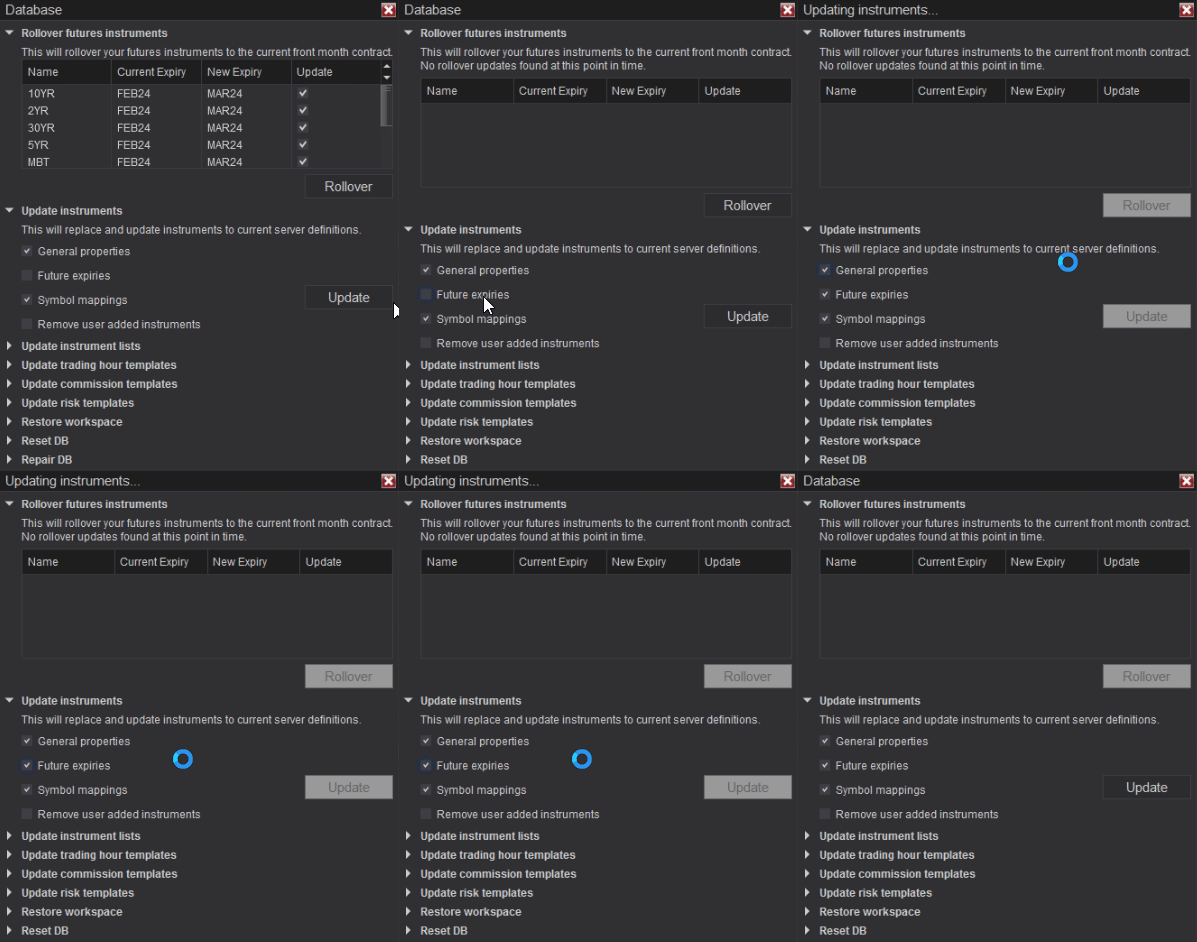
Ensure the strategy is running on the latest futures contract. Example: Current CL expiration is CL 04-24 (CL APR24). If your strategy is on an expired contract, do the following:
- Disable all strategies.
- Go to
Tools > Database Management. - Press Rollover future instruments.
- Check Future Expires and press Update.
- Enable strategies again.
- Save your workspace to keep the changes.
5.4 Unable to Enable Any Strategy 🔗
This usually means either a license error or a symbology display style problem. Please review both fixes (5.1 and 5.2).
5.5 Remote Support Request 🔗
We can provide remote support to help with installation and setup issues. Please download AnyDesk, then send your connection ID to: team@mascapital.uk.
Include details about your issue in the email, and be available at your computer so our technician can connect and assist you.
6. General Questions (FAQ) 🔗
What are the results of the backtesting? 🔗
General Testing Approach: We refrain from conducting backtesting or historical data testing on our strategies, as order filling is often inaccurate and results are unreliable. Backtesting is not recommended for evaluating strategy performance.
Live Market Testing: Instead, we recommend testing strategies in simulated environments using live market data. This ensures performance is aligned with expectations. Our guidelines emphasize using simulated accounts with live data for the most accurate assessment.
Requesting Recent Performance Data: If you would like recent performance data for M Trader, please email us and we will provide live market results for the requested timeframe.
Can I use playback? 🔗
Yes, you can test the strategy using playback. However, make sure to follow the same setup rules as live testing. Incorrect setup (e.g., adding the strategy directly on a chart) may give inaccurate results.
Why is it not advisable to test a strategy directly on an open chart? 🔗
- Data Limitations: Charts may not provide all the historical data required for complete testing.
- Wrong Session Time Setup: Each bundled template uses its own trading session template, optimized for its market.
- Data Manipulation: Interacting with charts during testing can distort results.
- Platform Interference: Other indicators or chart settings may interfere with strategy performance.
- Ease of Use: M Trader requires loading multiple templates onto the same account. This is only possible in the Strategy tab, allowing hundreds of strategies to run simultaneously without overloading your system (unlike separate chart setups).
7. Conclusion & Next Steps 🔗
The M Trader automated strategy for NinjaTrader 8 simplifies trading with ready-to-use templates, SIM testing methods, and structured setup guidelines. By following the steps in this guide, you can evaluate the strategy, test multiple template sets, and confidently decide which ones to use in live trading.
Always begin with simulation testing before live deployment. For support, licensing issues, or performance updates, contact our team at team@mascapital.uk.