M Trader is a price-action indicator for NinjaTrader 8 that prints clear long/short ideas and an on-chart Risk/Reward tool. It’s designed for fast visual execution with optional sound alerts, MA filters, and style templates you can fully customize.
This guide shows how to install, add to a chart, understand the signal logic, and fine-tune parameters. You’ll also get setup examples, troubleshooting, and direct links to related tools like the Easy Trade one-click entry and Risk/Reward (Pro).
Table of Contents 🔗
- 1) What M Trader Does
- 2) Install & Add to a Chart
- 3) How Signals Work (At a Glance)
- 4) Signal Workflow (Step-by-Step)
- 5) Parameters & Templates (R/R, Alerts, Filters)
- 6) Styling Arrows & R/R Lines
- 7) Under the Hood (Logic & Filters)
- 8) Practical Setup Examples
- 9) Troubleshooting & Common Issues
- 10) FAQ
1) What M Trader Does 🔗
M Trader highlights momentum-correction entries and immediately draws a Risk/Reward tool so you can place orders with confidence. You can restrict signals using moving-average slope/side and broad market bias, or run it “wide open” for more ideas.
2) Install & Add to a Chart 🔗
- Download the M Trader indicator
.zipand keep it intact. - NT8 → Control Center → Tools → Import → NinjaScript Add-On… → select the
.zip. - Confirm any replacement prompts to sync templates/files with the latest version.
- Restart NinjaTrader 8 (ensures fresh compile and resources).
- Open your chart → Indicators (Ctrl+I) → add MTRIndicator → OK.
3) How Signals Work (At a Glance) 🔗
M Trader evaluates recent price action together with trend context from moving averages.
-
Short idea: It highlights bearish setups where price shows weakness and aligns with market conditions.
- Long idea: It highlights bullish setups where price shows strength and aligns with trend direction.
When criteria are met, the indicator prints an arrow on the chart and then automatically projects a Risk/Reward tool for the potential entry.
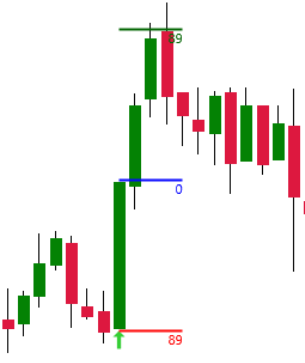
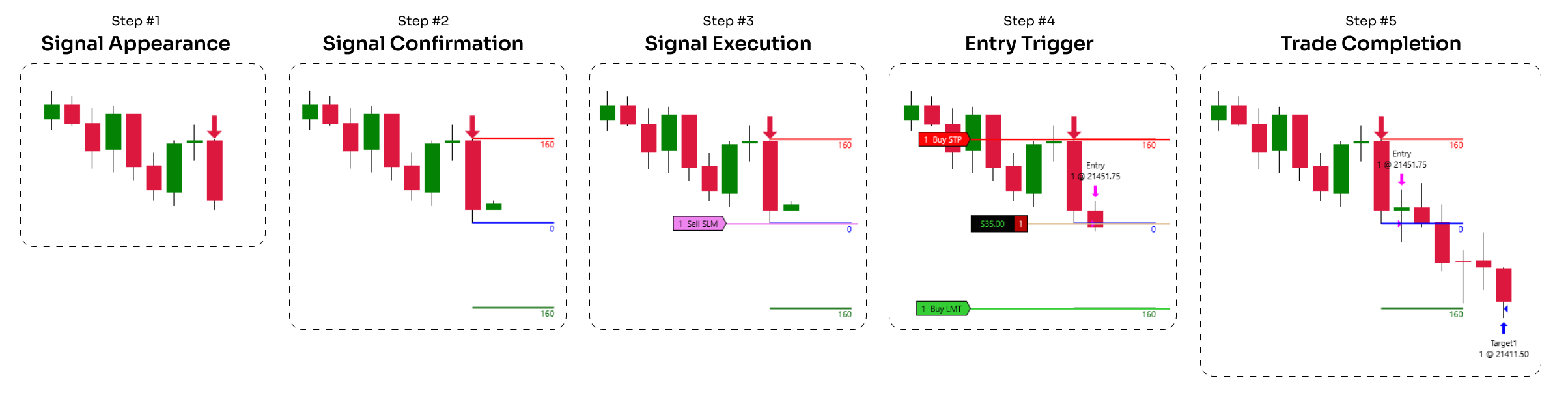
4) Signal Workflow (Step-by-Step) 🔗
Step 1 — Early Signal Appears 🔗
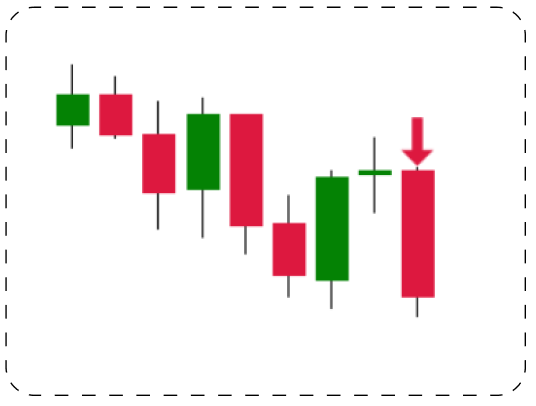
Step 2 — Confirmation 🔗
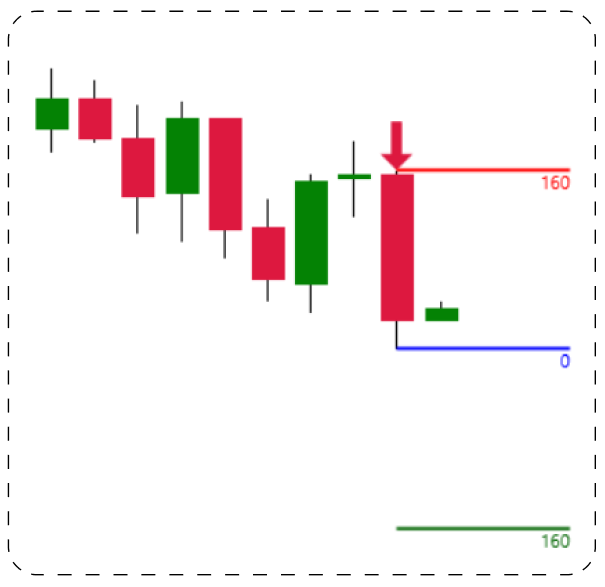
Step 3 — Execution Plan 🔗
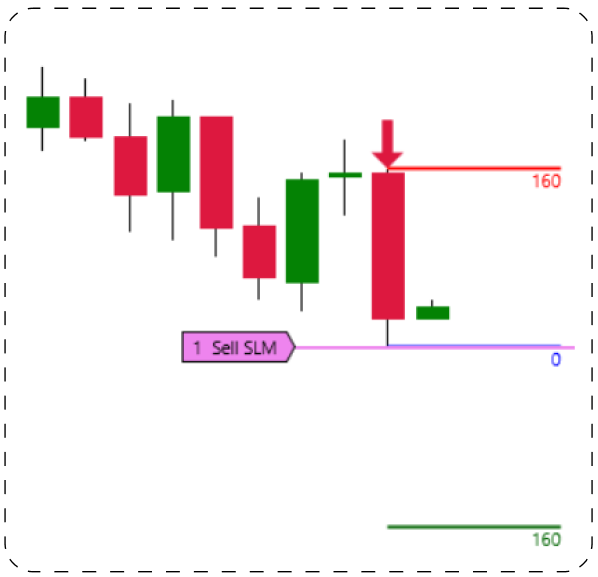
Place a limit order at the entry line in the signal direction. Attach your stops/targets or use an ATM.
Step 4 — Entry Trigger 🔗
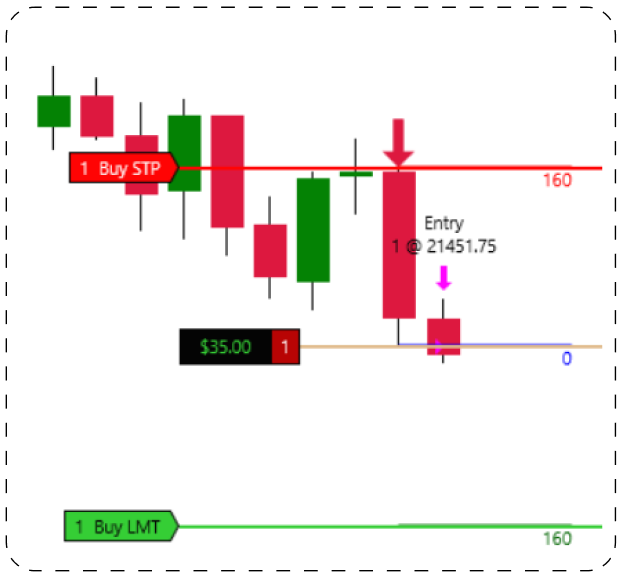
Once filled, manage the trade by the printed R/R tool or your ATM logic.
Step 5 — Completion 🔗
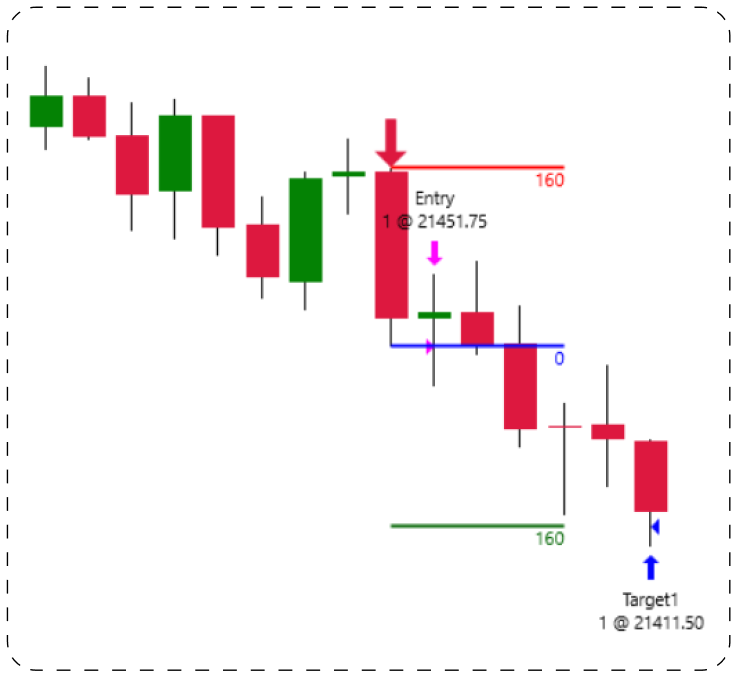
5) Parameters & Templates (R/R, Alerts, Filters) 🔗
5.1 R/R Tool 🔗
- R/R Ratio — default
1.0. Adjust for your playbook (e.g., 1.5 or 2.0 for trend legs). - R/R Tool Template Name — default
MTRTemplate. Defines colors/fonts of the R/R drawing.

5.2 Signal Filters & Behavior 🔗
-
Momentum Filter (default: on) — helps avoid signals that occur during extreme, high-speed price bursts.
-
Candle Balance (default: medium) — controls how “strict” the indicator is when comparing bar sizes; lower settings = fewer but cleaner signals.
-
Entry Size Limit (default: moderate) — filters out setups formed by candles considered too large for practical execution.
-
Trend Alignment (short-term) — requires the trade idea to agree with the short-term moving average slope.
-
Trend Side (short-term) — checks that price is positioned correctly relative to the short-term trend line.
-
Market Bias (long-term) — allows signals only when the broader market direction supports the trade.
-
Trade Side Selection — you can enable or disable long or short setups independently.
5.3 Alerts 🔗
- Alert — plays a sound when an early arrow prints (heads-up stage).
- Alert File — default
Alert1.wav. Place custom sounds inC:\Program Files\NinjaTrader 8\soundsand set the filename in parameters.
6) Styling Arrows & R/R Lines 🔗
6.1 Change R/R Style 🔗
- Double-click an R/R drawing on the chart → customize.
- Save as a drawing template, e.g.,
MTRTemplate. - Update the indicator’s R/R Tool Template Name to match.
- Press F5 to refresh.
6.2 Change Arrow Style 🔗
- Double-click an arrow → customize (size, color, etc.).
- Save as
MTRTemplateArrowUpandMTRTemplateArrowDown. - Press F5 to refresh.
8) Practical Setup Examples 🔗
- Baseline (conservative): NQ 5-min, MA Direction = ON, MA Side = ON, Market Side = ON, Size Multiplier = 0.55, R/R = 1.
- Expansion (moderate): turn Market Side OFF to allow counter-swings; keep MA(20) slope/side ON.
- Exploratory (aggressive): MA filters OFF, slightly increase Size Multiplier (e.g., 0.65) to admit more signals; test first on Sim.
9) Troubleshooting & Common Issues 🔗
9.1 No signals appear 🔗
- Load enough data (≥ 256 bars). On higher TFs, set Days to load generously.
- Use time-based bars. Non-time bars (Renko/Range) are not the primary design.
- Check MA filters — if too restrictive, disable one or more to test.
- Open Control Center → Log for licensing messages.
MASCapital). If you see a Machine ID/licensing note, email team@mascapital.uk and we’ll activate/assist.9.2 Arrows print but no R/R 🔗
- R/R draws on the next bar after the arrow, at the saved entry level.
- Confirm Long/Short Trades are enabled in parameters.
- Ensure R/R Tool Template Name exists (or simply use
MTRTemplate).
9.3 Alert sound not playing 🔗
- Set Alert = ON and verify Alert File name.
- Place the file in
…\NinjaTrader 8\sounds.
9.4 Want different colors/fonts 🔗
- Double-click an R/R drawing or arrow → style it → save to template.
- Update the indicator to use your template name(s); refresh with F5.
10) FAQ 🔗
Does M Trader work on any market/timeframe?
Yes. Time-based bars are recommended. We suggest starting with NQ 5-minute for balance and clarity.
How much history do I need?
At least 256 bars so logic initializes correctly; add more for slower timeframes.
Can I customize the look?
Yes — save templates: MTRTemplate for R/R, MTRTemplateArrowUp/Down for arrows. Update names in parameters.
What’s a good risk plan?
Common approach: scale out 60–80% at 1:1, keep a small runner for extended moves.
How do I place orders faster?
Use Easy Trade for one-click limit/stop entries from the chart.
Get M Trader Indicator • Explore our Free Indicators Pack • Advanced R/R visuals: Risk/Reward (Pro)